The HIPAA Enrollment Master can export the enrollment data to spreadsheet file:
| • | Microsoft Excel .xls and .xlsx formats |
| • | Open Document (a non-proprietary) .ods format. |
You do not need to have Excel or Open Office installed on your computer; the Enrollment Master comes with the necessary drivers to accomplish this.
You can create spreadsheet files manually or automatically using the command line arguments and Windows Scheduler. Read more in:
Before creating spreadsheet files, make sure all settings are defined correctly. The following options can be defined:
| • | The directory in which to save the resulting files. See Configuring Program Options. |
| • | File format and columns. See Configuring Spreadsheet Options. |
Follow the instructions below to create spreadsheet file(s) from EDI file(s).
| 1. | Open an EDI file or directory containing the EDI files in the HIPAA Enrollment Master. Read more in Processing a Benefit Enrollment File, Working through an Entire Directory. The "Open" button 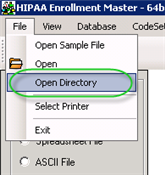 The "Open Directory" menu |
| 2. | Select the "Spreadsheet" option in the "Output Mode" block. The "Spreadsheet" option |
| 3. | Click on the "Run" button. The "Run" buttons |
| 4. | The process will start. While running, you will see the "Stop" button instead of "Run." The "Stop" buttons |
| 5. | The "Processing Results" window displays the report. You can find the result XLS, XLSX or ODS files in the specified folder. The "Processing Results" window |
| 6. | You will be asked to if to open the resulting file. Click "Yes" to view the data. The "Yes" button in the "Excel File" popup |
| 7. | The resulting spreadsheet will look like this.  Excel spreadsheet example |
| • | The first two rows contain EDI file information that is applicable to all records. Row 1 has the column or field names, row 2 has the data. |
| • | Row 4 has group headings usually representing loop identifiers in the standard such as 2010C, etc. |
| • | Row 5 contains column or field names. |
| • | Row 6 and beyond contain the individual records. |
There are fields that have multiple lines. The information is separated with ASCII(10) characters.