The HIPAA Enrollment Master can translate and export data into any ODBC-compliant database such as Microsoft SQL Server, Oracle, etc.
Tip: The default fields that come with the product can be extended; customizations are possible.
1. Select Database  Connection and Data Fields in the main menu.

The "Connection and Data Fields" menu
2. You will be confronted with the following screen where you can set up the database connection and enter the names of the database tables.
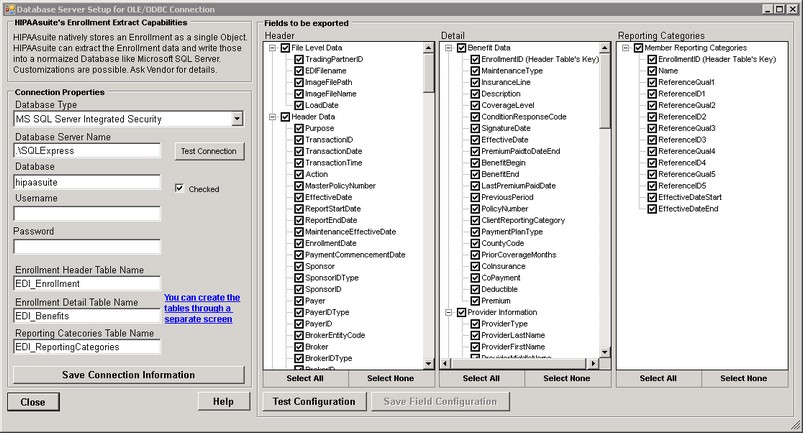
The "Data and Field Setup" window
Connection Properties
Tip: If you use ODBC for the connection, you will need to set up the ODBC connection first in the Windows Control Panel Administrative Tools Data Sources (ODBC) setup screen. Setting up the ODBC connection varies from database to database.
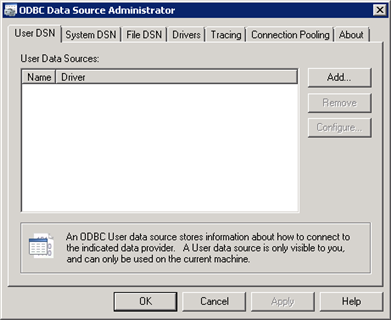
The ODBC Administration screen in Windows
Define the database connection properties:
| • | Database Type — Select ODBC or Microsoft SQL Server type: |
Note: If you need other types, please contact us for customizations.
| • | MS SQL Server |
| • | MS SQL Server Integrated Security |
| • | ODBC Connection |
| • | ODBC Connection for Oracle |
| • | Database Server Name or DSN — If you use SQL Server, then enter the IP address or the name of the database server. If you use ODBC, then specify the Data Source Name (DSN) that is defined through the ODBC in the Control Panel of Windows. Latest MySQL ODBC driver can be downloaded on http://dev.mysql.com/downloads/connector/odbc/. |
| • | Database — Define the database under the above connection. For Microsoft SQL Server Integrated Security, leave the field empty. |
| • | Username — A defined user that has privileges to the database. For Microsoft SQL Server Integrated Security, leave the field empty. |
| • | Password — Enter the user's password. Not required for Microsoft SQL Server Integrated Security. |
Tip: Normally, database, username and password are configured in the Windows Data Sources (ODBC) Manager and are not required to be provided in these fields.
| • | Enrollment Header Table Name — Enter the name that you give to your Claim header table. A default name is suggested, you can overwrite it. |
| • | Enrollment Detail Table Name — Define the name of the table that contains the line information. A default name is suggested, you can overwrite it. |
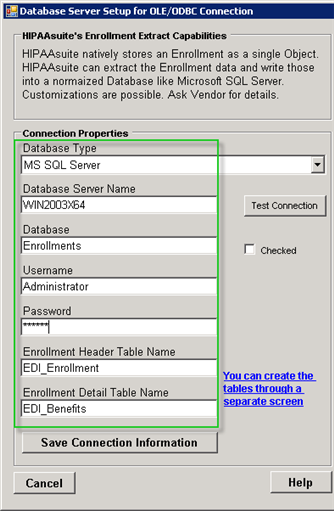
The connection properties fields
Note: Consult Windows Help or the internet on specific data source setups.
To create tables in your database, click on the "You can create the tables through a separate screen" link. For instructions, refer to Creating Tables.
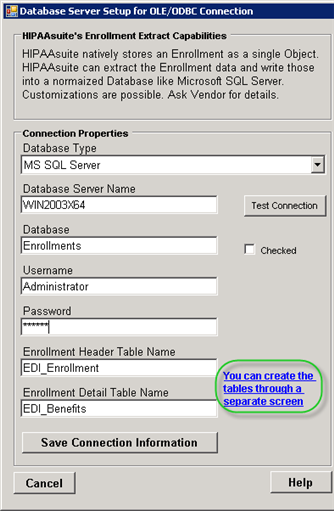
A link to create tables
Once the connection parameters have been entered, click "Save Connection Information."
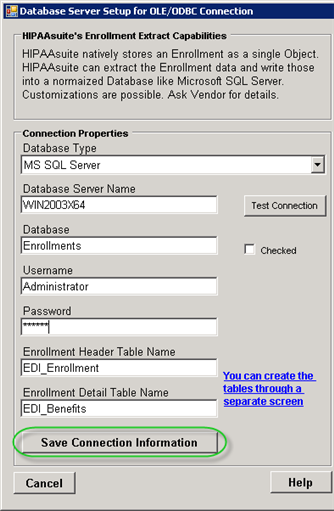
The "Save Connection Information" button
To verify if the entered parameters are correct, click on the "Test Connection" button.
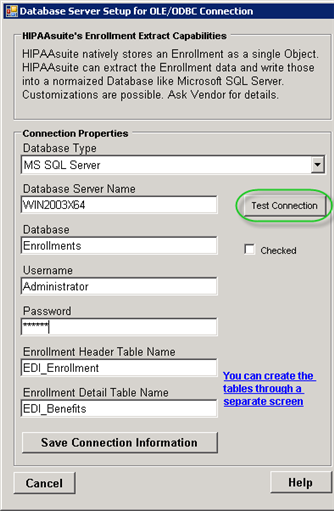
The "Test Connection" button
If the test has passed successfully, you will see the following notification:
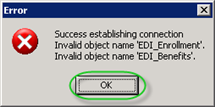
The success message
Once the test has passed successfully, the "Connection not checked" message changes to "Connection chеcked."
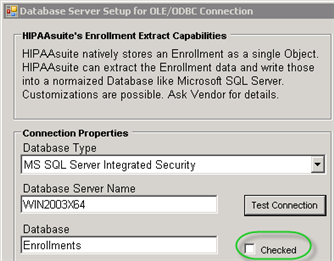
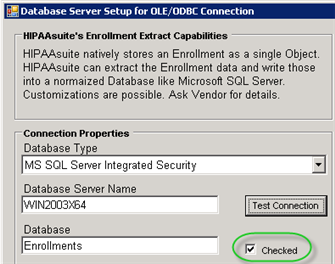
The "Connection not checked" checkbox
Once you have the database connection defined and tested, you can enter the table names. See Selecting Fields to Export.
If you need to create the tables first, then see Creating Tables.